
How to send a payment request
You can send payment requests to existing customers through the EtchRock platform. This sends the customer an email along with your message and a link to a page for them to make the payment.
How to send a payment request
Step 1 - Navigate to your customers existing order.
To view a table of all the orders for your event, go to the 'Manage Event' section, then from the menu on the left select 'Manage Participants' & then 'Orders'. Here you will see a table listing all of the orders for your event.
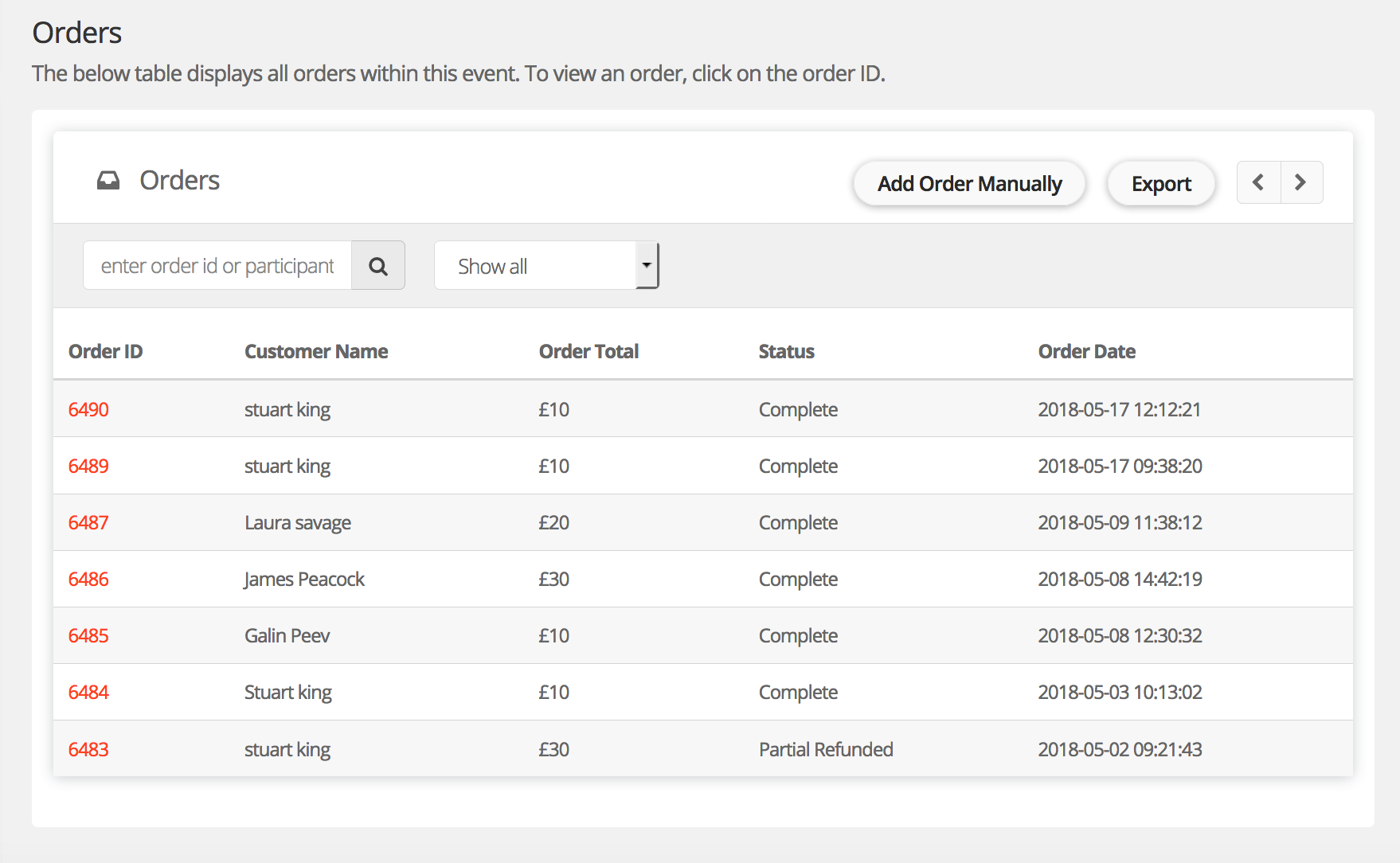
From this page, you can search for an order by 'Order ID' which is unique to every order, or you can search by the 'Customer Name'.
Step 2 - Once you have opened the order, click 'Request extra payment'.
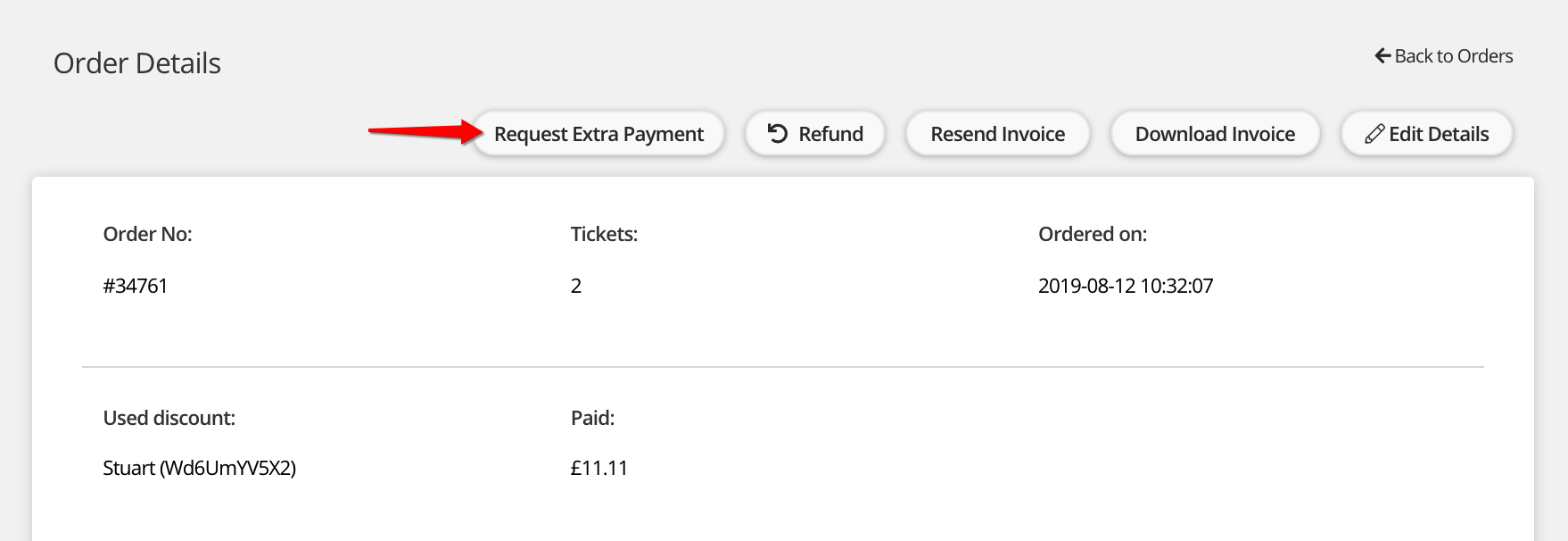
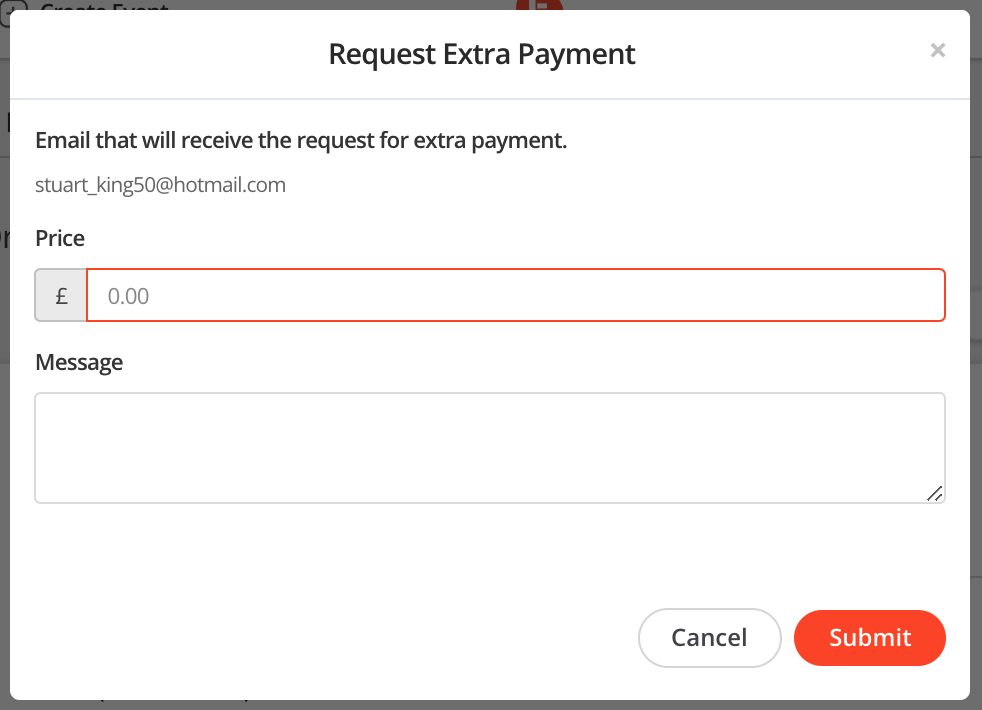
Step 3 - Next add the amount you wish to be paid and write a message so that your customer knows what they are paying for.
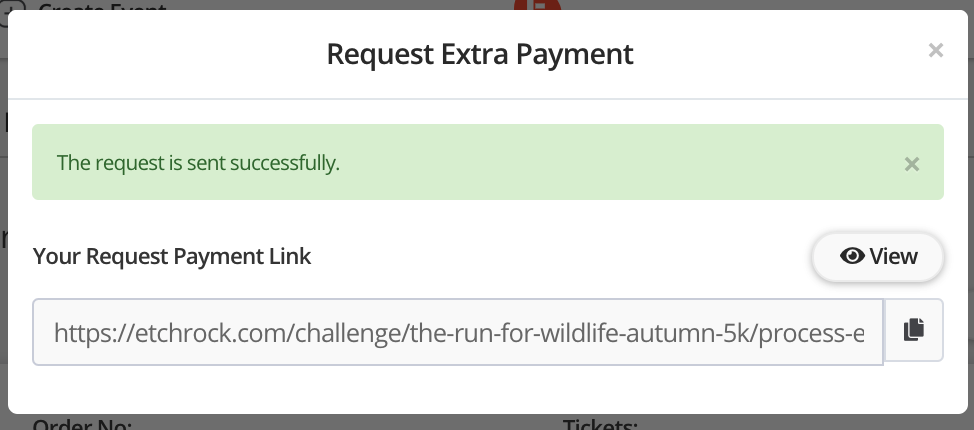
Step 4 - That's it, we will send the customer an email along with your message and a link to a page for them to make the payment. You'll also be able to copy this link to share with your customer directly.
For help please email support@etchrock.com
Comments
0 comments
Article is closed for comments.