
Orders
To view a table of all the orders for your event, go to the 'Manage Event' section, then from the menu on the left select 'Manage Participants' & then 'Orders'. Here you will see a table listing all of the orders for your event.
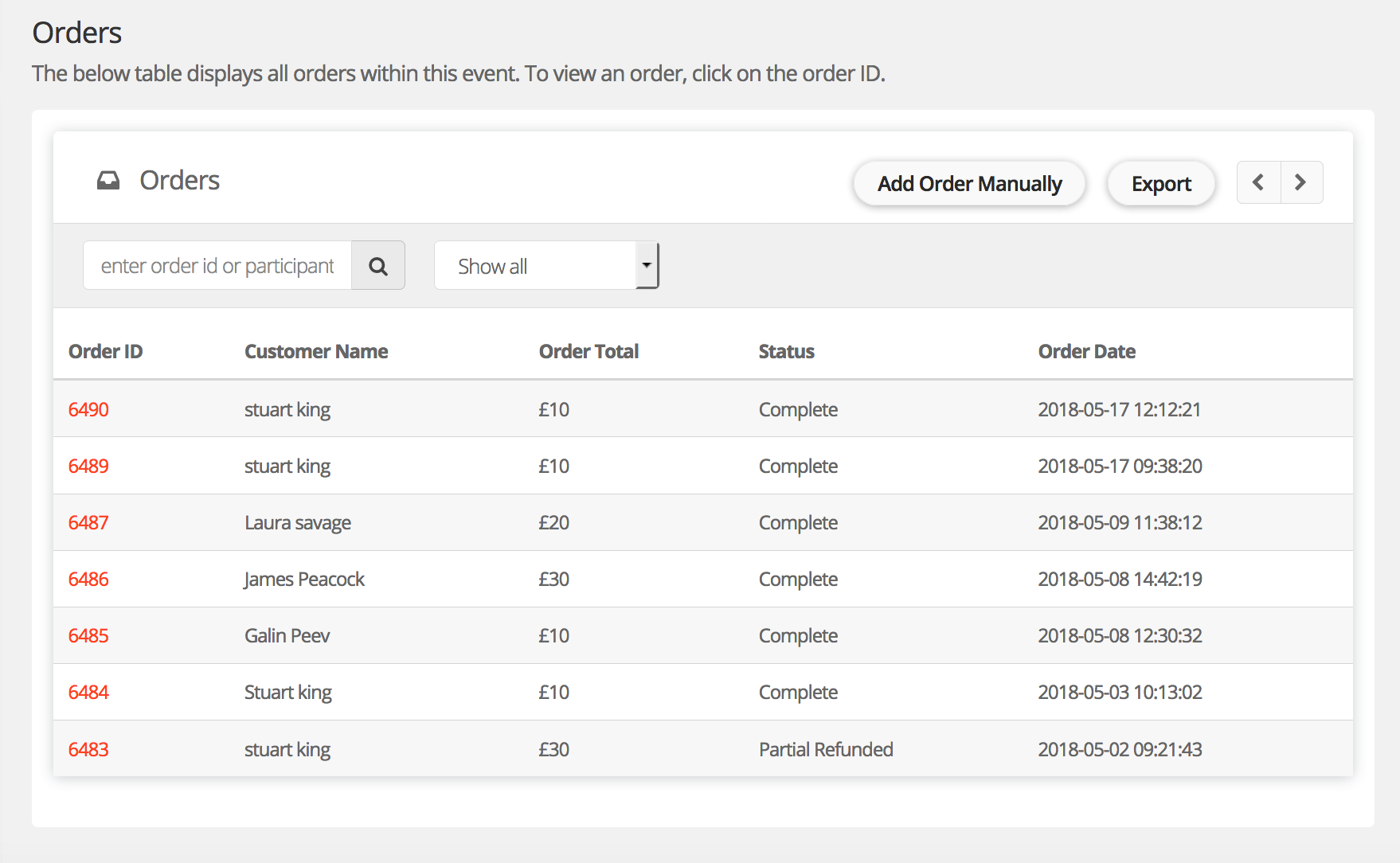
From this page, you can search for an order by 'Order ID' which is unique to every order, or you can search by the 'Customer Name'.
Filter Orders
There is a drop down menu (at default it says 'Show all') which you can filter on the status of the orders. An example status for an order is 'Refunded', by selecting this from the drop down, it will only show orders that have been refunded.
Upload order manually
You have the option to add an order manually to this list. If you wish to add an order manually (the participant may have paid you directly), select the 'Add Order Manually' button, select the type of ticket & then go on to complete the registration form. You will be able to specify how they paid from a drop down menu (eg. 'Paid with cheque').
Export orders
You can also download a list of all the orders for your event. By clicking on the 'Export' button displayed, this will redirect you to the 'Export' page on the menu. Click on 'Download CSV file with orders' to generate an Excel report with a full list of all orders with information including customer name, address etc.
View an order
To view the details of a specific order, simply click on the 'Order ID' which is highlighted in Orange. This will take you to the 'Order Details' page.
Order Details
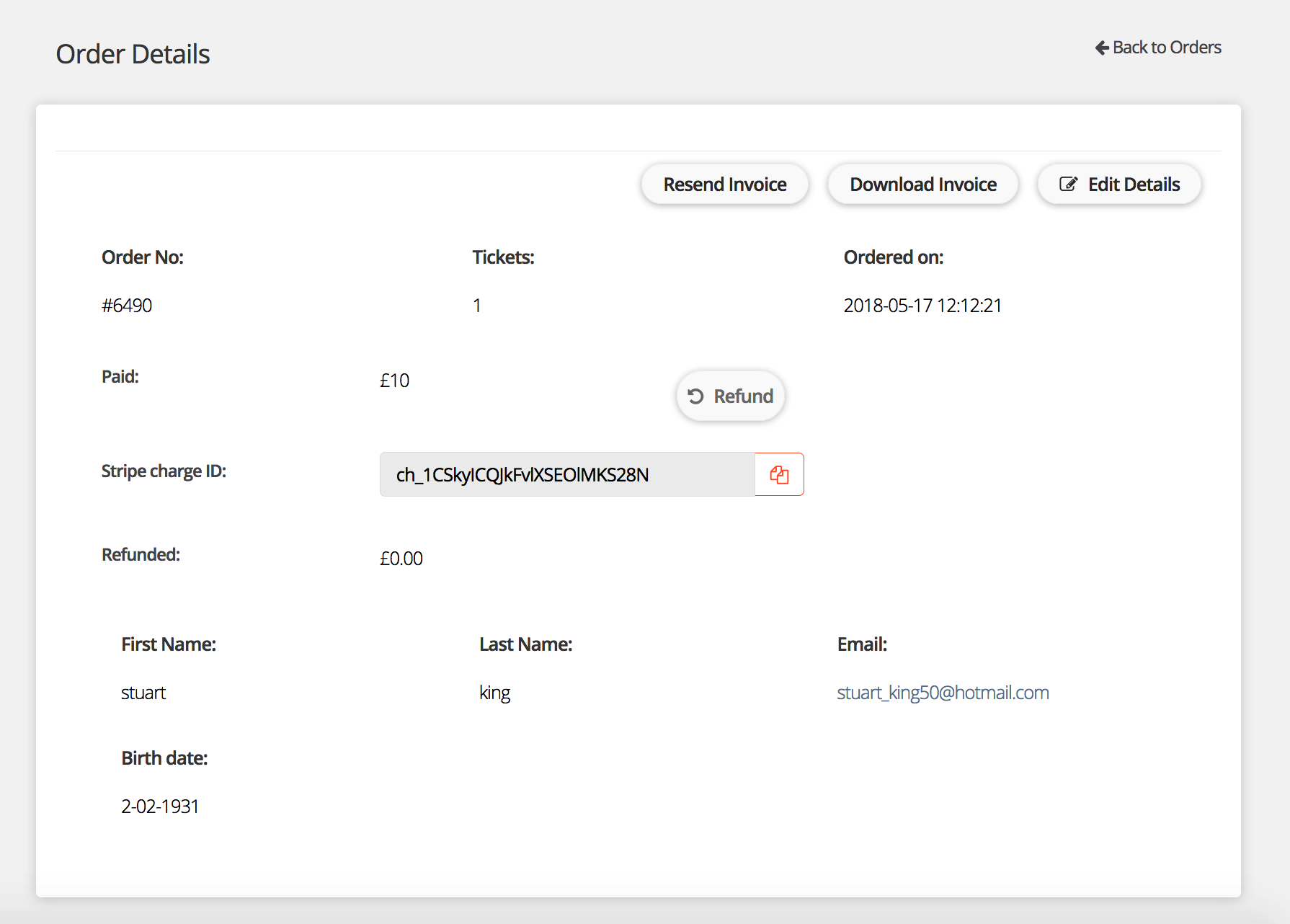
The Order Details page displays all information for a specific order.
Re-send invoice
You can choose to resend an invoice if requested by the customer. Click 'Resend Invoice' to send directly to their email.
Downoad invoice
You can also choose to download a customers invoice yourself to view. Click 'Download Invoice' to download for yourself.
Edit order details
You have the ability to edit some of the details within an order. Click on the 'Edit Details' button & you are able to edit the customer first name, last name & email address within the order.
Issue Refund
From the Order Details page, you are able to Refund an order. Click on the 'Refund' button, just above the 'Stripe Charge ID' & complete the pop up box to issue a refund.
Information displayed on the Order Details page includes:
- Billing Address
- Buyer's Address
- Details of Tickets Purchased (This section shows the participants for which the tickets have been purchased. You can click on the Participants Name to take you to their details)
- Additional Items Purchased (eg. Merchandise)
- Order Timeline (This will display the sequence of events for an order)
Comments
0 comments
Article is closed for comments.