
Issuing a Refund
To issue a refund, go to the 'Order Details' page within 'Manage Event > Manage Participants > Orders, then click on the Order ID for the order that you wish to refund.

Click on the 'Refund' button on the 'Order Details' page.
This will then give you the option of issuing a full refund or a partial refund.

Full Refund
To issue a full refund, ensure that the full refund box is checked & click 'Next'.
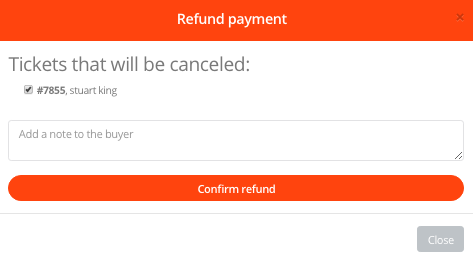
In the next pop up box, you have the option to cancel the ticket associated with the order. If you wish to do so, leave the box ticked (it is preset to tick the box), if not, please ensure that you un-tick this box. If you do chose to cancel the ticket, it will go straight back on sale.
You can also add a message to the customer in the text box provided if you wish.
Then click 'Confirm Refund' to issue the refund.
You will receive a 'success' message once the refund has been processed (within a few seconds). A unique refund ID is generated which will match up with the ID on Stripe.
On the 'Order Details' page, it will now say 'Refunded' as shown below.

Partial Refund
To issue a partial refund, click 'Partial Refund' in the box & specify how much you wish to refund in the box that will appear.

Once you have entered the amount you wish to refund, click 'Next'. If you wish to cancel the associated ticket, please select the ticket to be cancelled in the next pop up box (this is preset not to select any tickets).

Once you have selected the tickets, click 'Confirm Refund' & once complete you will be taken back to the 'Order Details' page.
You will receive a 'success' message once the refund has been processed (within a few seconds). A unique refund ID is generated which will match up with the ID on Stripe.

Communication
Once a refund has been issued, we will send an email to the person who placed the order with the Refund ID.
For help please email support@etchrock.com
Comments
0 comments
Please sign in to leave a comment.