
You can add custom confirmation messages for participants to see after they have bought a ticket to your event. These can be added to both the confirmation page and the pdf ticket that is emailed to the participant.
1) Add a custom message to the confirmation page
2) Add a custom message to the participants ticket
Add a custom message to the confirmation page
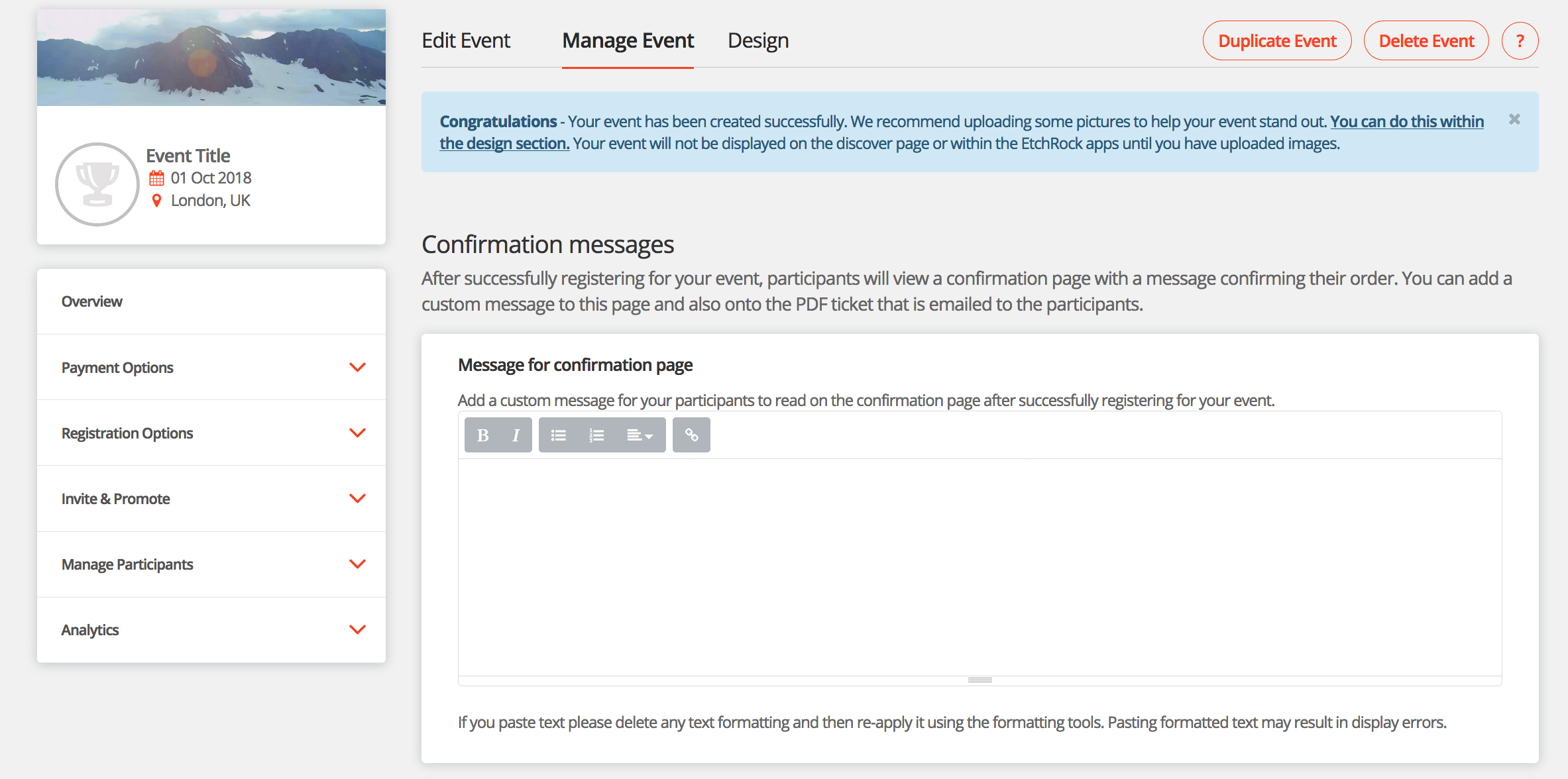
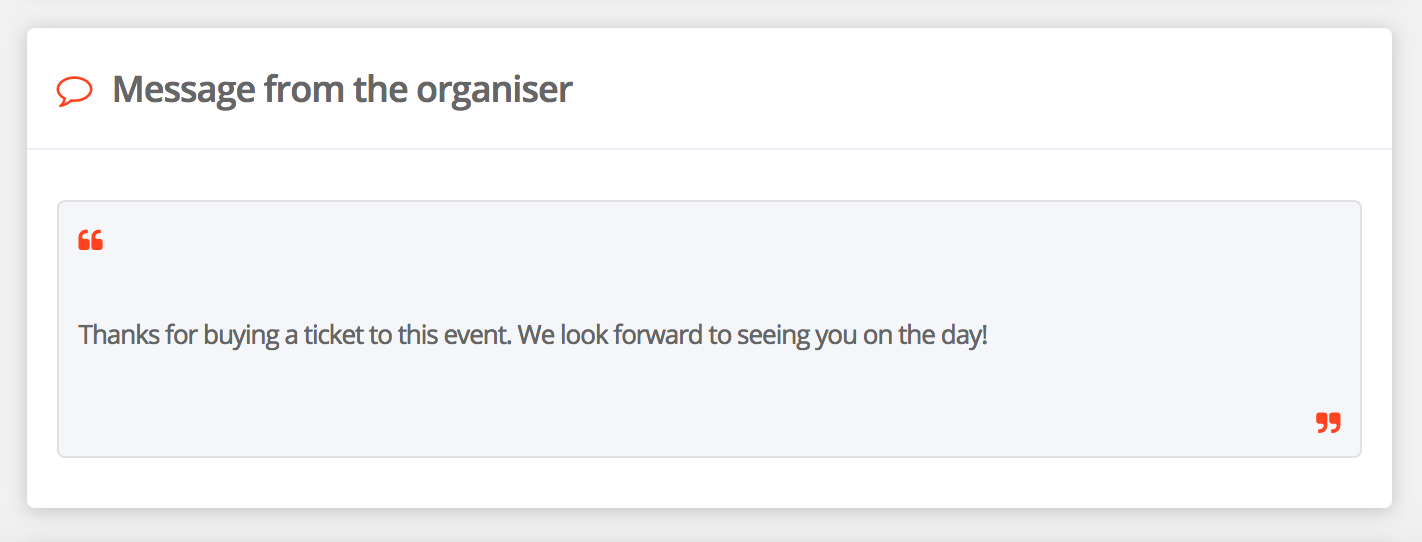
When participants buy a ticket to your event they will land on a confirmation page confirming their order has been sucessful. To add a message to the confirmation page go to 'manage event' > 'registration options' > 'confirmation messages'.
Adding a message
You can then add in a message which will appear on the confirmation page. If you paste text please delete any text formatting and then re-apply it using the formatting tools. Pasting formatted text may result in display errors.
Add a custom message to the participants ticket
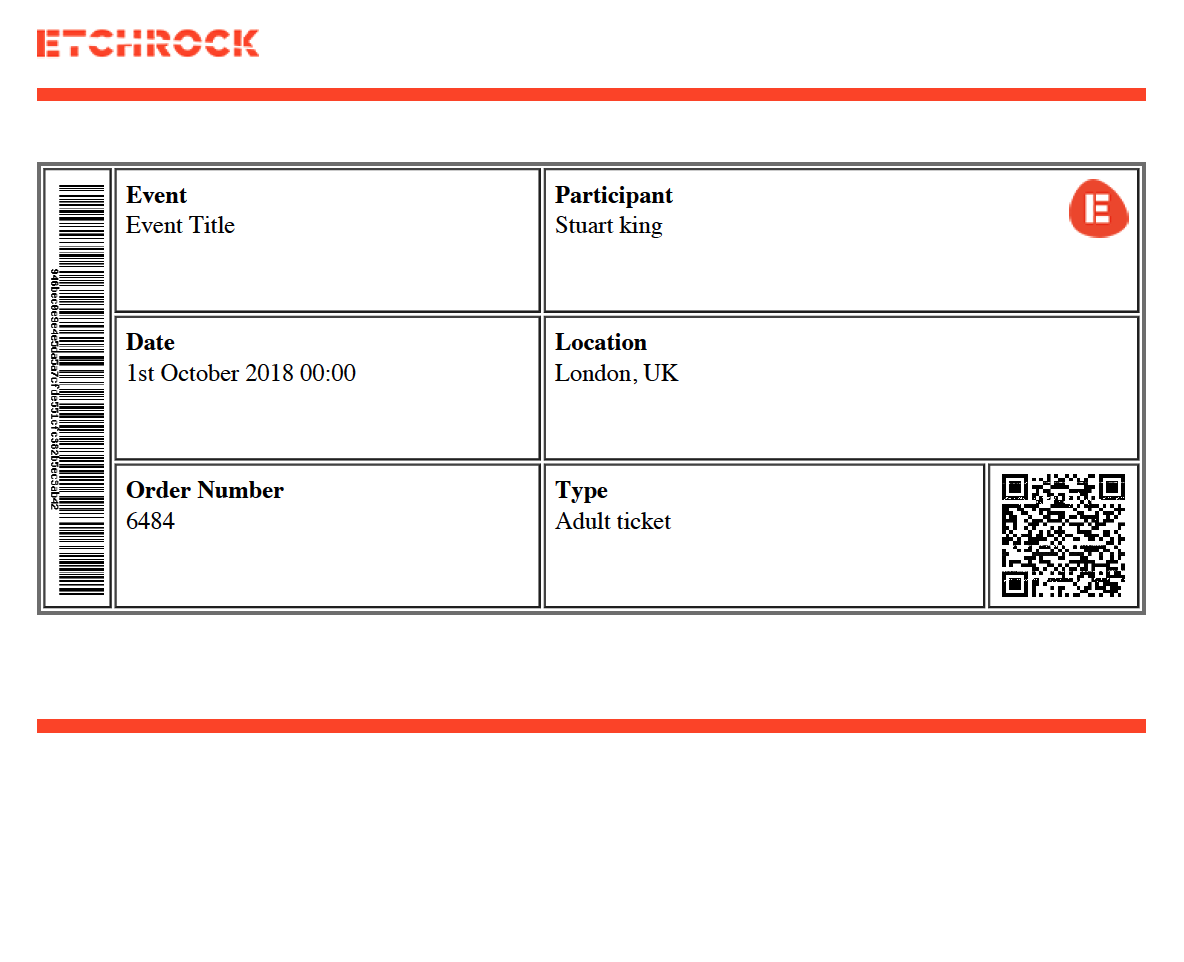
When participants buy a ticket to your event they will recieve a pdf ticket by email. To add a message to the pdf ticket go to 'manage event' > 'registration options' > 'confirmation messages'.
Adding a message
You can then add in a message which will appear on the pdf ticket. If you paste text please delete any text formatting and then re-apply it using the formatting tools. Pasting formatted text may result in display errors.
Comments
0 comments
Please sign in to leave a comment.