
Understanding delivery options
When using the EtchRock shop to sell items of merchandise you are able to add set two delivery options 'Collect On Race Day' and 'Home Delivery'. You are able to enable/disable these options by default across all items. You can also disable 'Home delivery' on specific items. The below guide details how this works.
* For 'Home Delivery' you are able to apply a shipping fee.
Setting your default delivery options
Setting default delivery options enables or disables the two delivery options ('Collect On Race Day' and 'Home Delivery') on all items. To set these follow the below steps.
Step 1
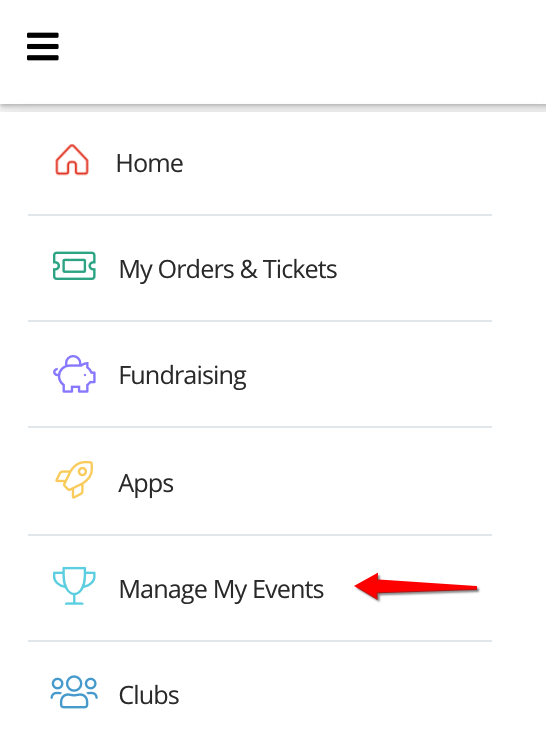
Using the side menu bar, click on the top icon to open the menu and then click 'Manage My Events'.
Step 2
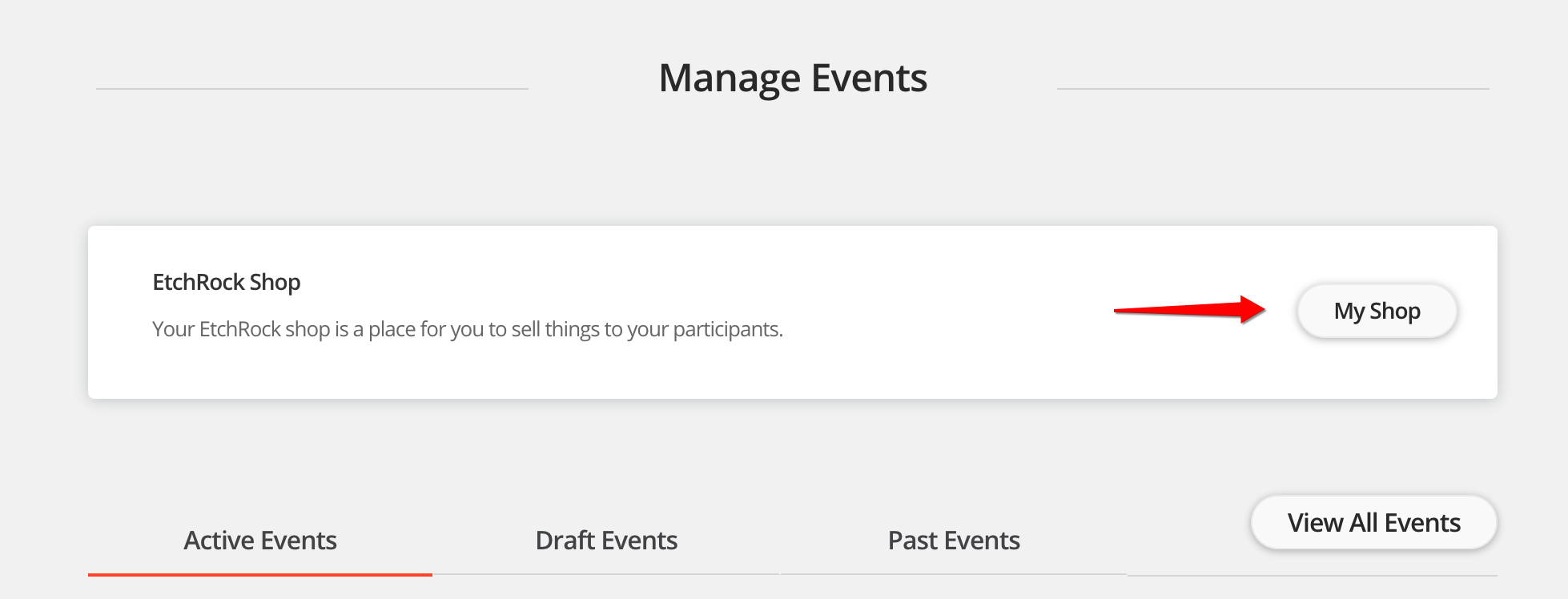
Select 'My Shop'. You'll then be shown your shop overview page.
Step 3
Step 3
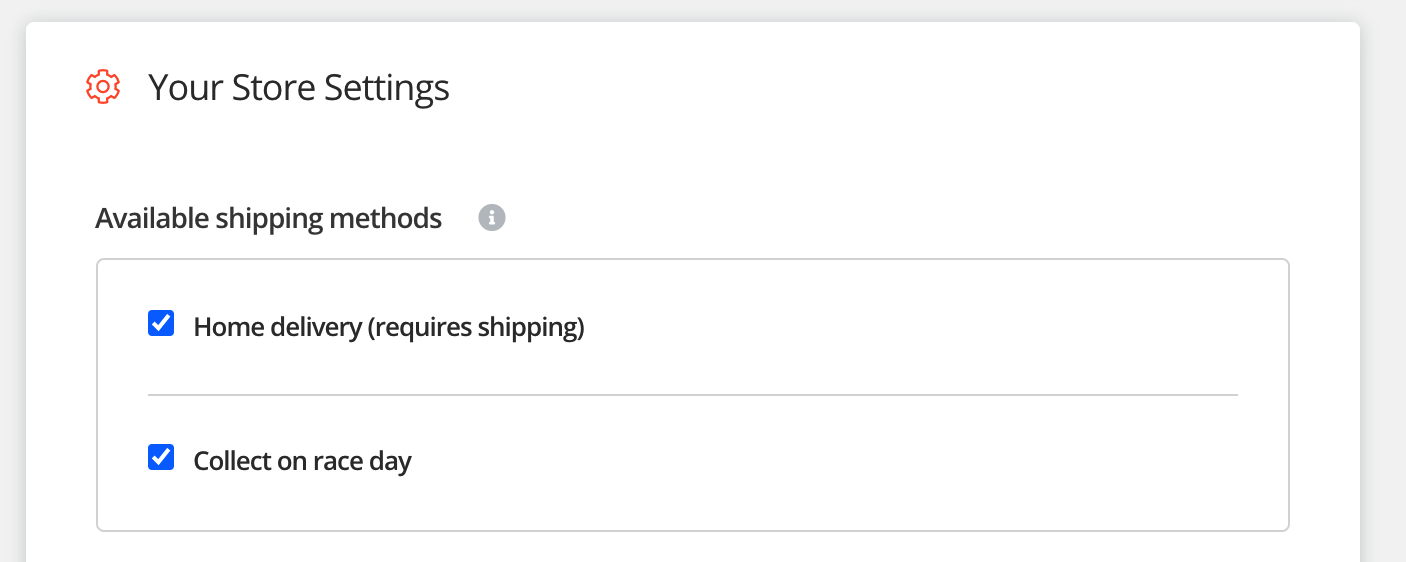
Scroll down the page until you find your store settings section. Within this section you'll see the option to enable/disable your two shipping options. This is your default shipping options that will be applied to all items.
* For 'Home Delivery' you are able to apply a shipping fee.
Disable 'Home delivery' on specific items
If you have 'Home delivery' enabled by default across all items, you are able to disable 'home delivery' on specific items by disabling the home delivery option within the specific item. To do this follow the below steps.
Step 1
Using the side menu bar, click on the top icon to open the menu and then click 'Manage My Events'.
Step 2
Select 'My Shop'. You'll then be shown your shop overview page.
Step 3
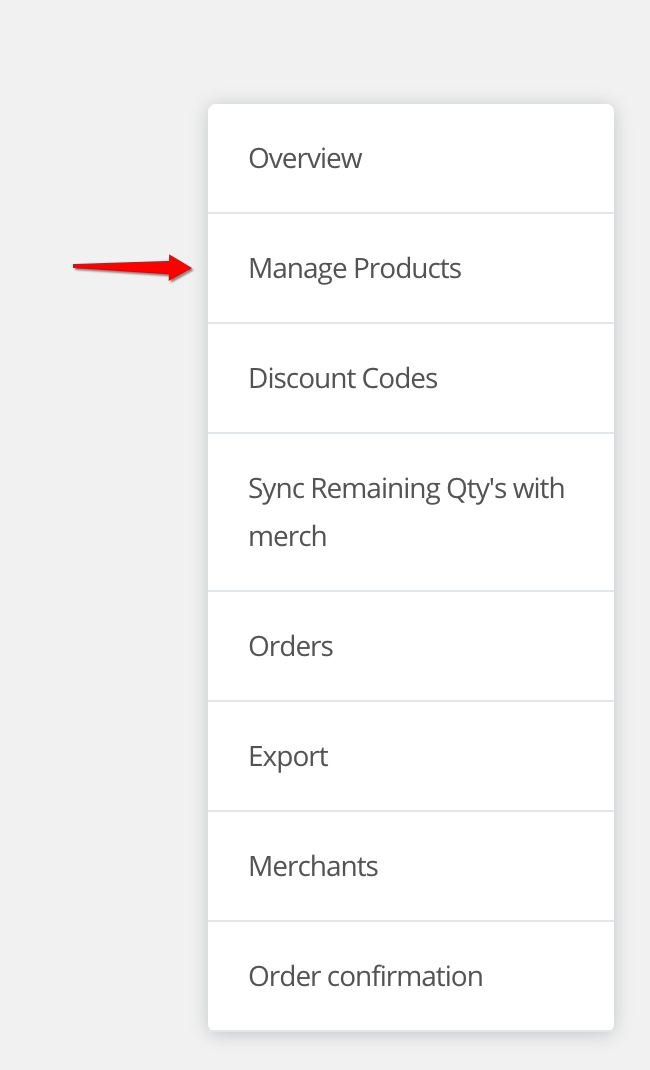
Select 'Manage Products'.
Step 4
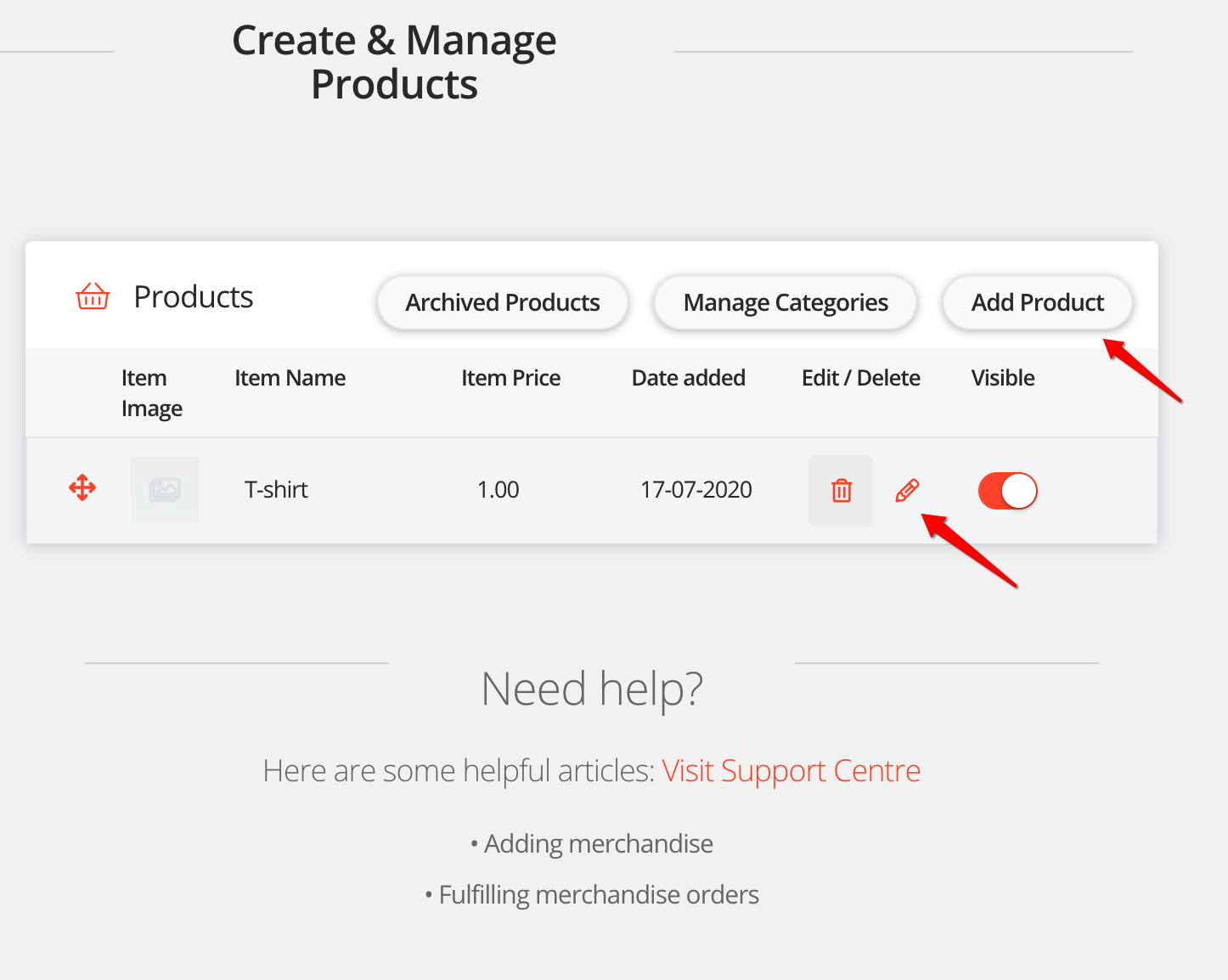
Click 'Add Product' or click the edit icon on an existing item.
Step 5
On the right hand side of the page you'll find a section titled 'Delivery options and shipping fee'. In this section there is a field named 'Enable home delivery', untick this box to disable home delivery.
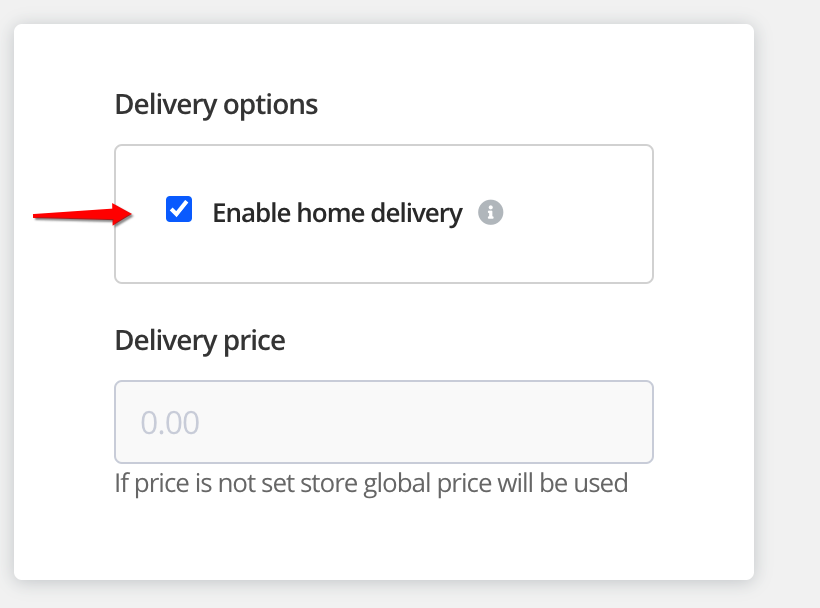
That's it, this item will no longer be available for home delivery.
For help please email support@etchroc.com
Comments
0 comments
Article is closed for comments.