
Understanding shipping fees
When using the EtchRock shop to sell items of merchandise you are able to add shipping fees. This can be done by applying a default shipping fee which will be applied to all items or by adding an item specific shipping fee to a particular item. You are also able to use the two in conjunction with each other by setting a default shipping fee and then a bespoke fee to specific items. In this instance the default shipping fee will be used unless an item bespoke fee has been applied.
*If a customer is registering for an event they are not shown shipping options, the item is by default set to collect on race day. Shipping options are only available for customers purchasing items through your EtchRock shop.
How to set a default shipping fee
Step 1
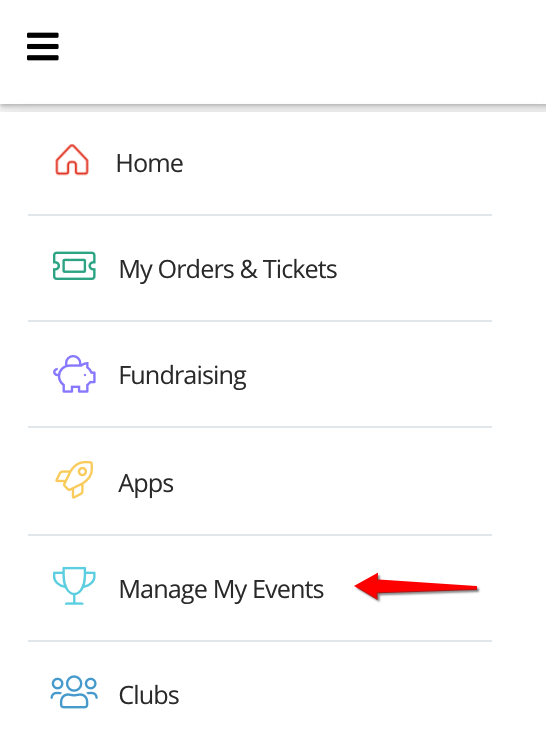
Using the side menu bar, click on the top icon to open the menu and then click 'Manage My Events'.
Step 2
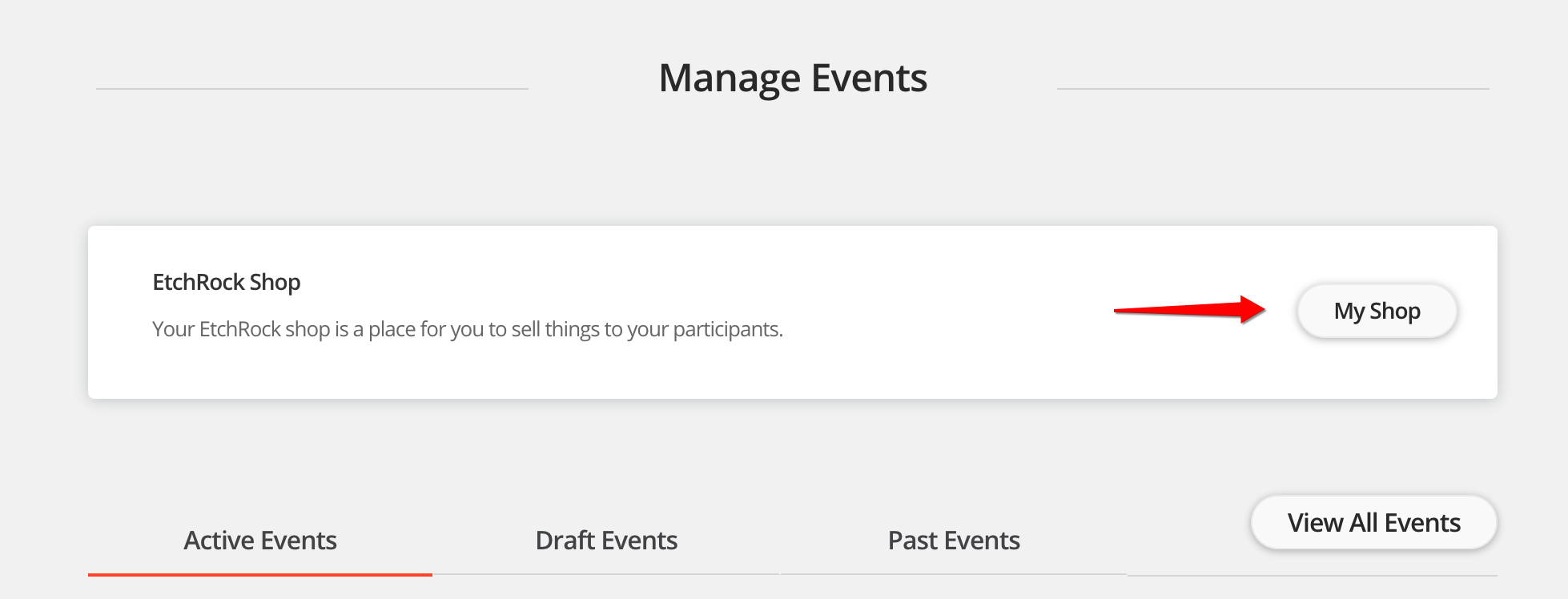
Select 'My Shop'. You'll then be shown your shop overview page.
Step 3
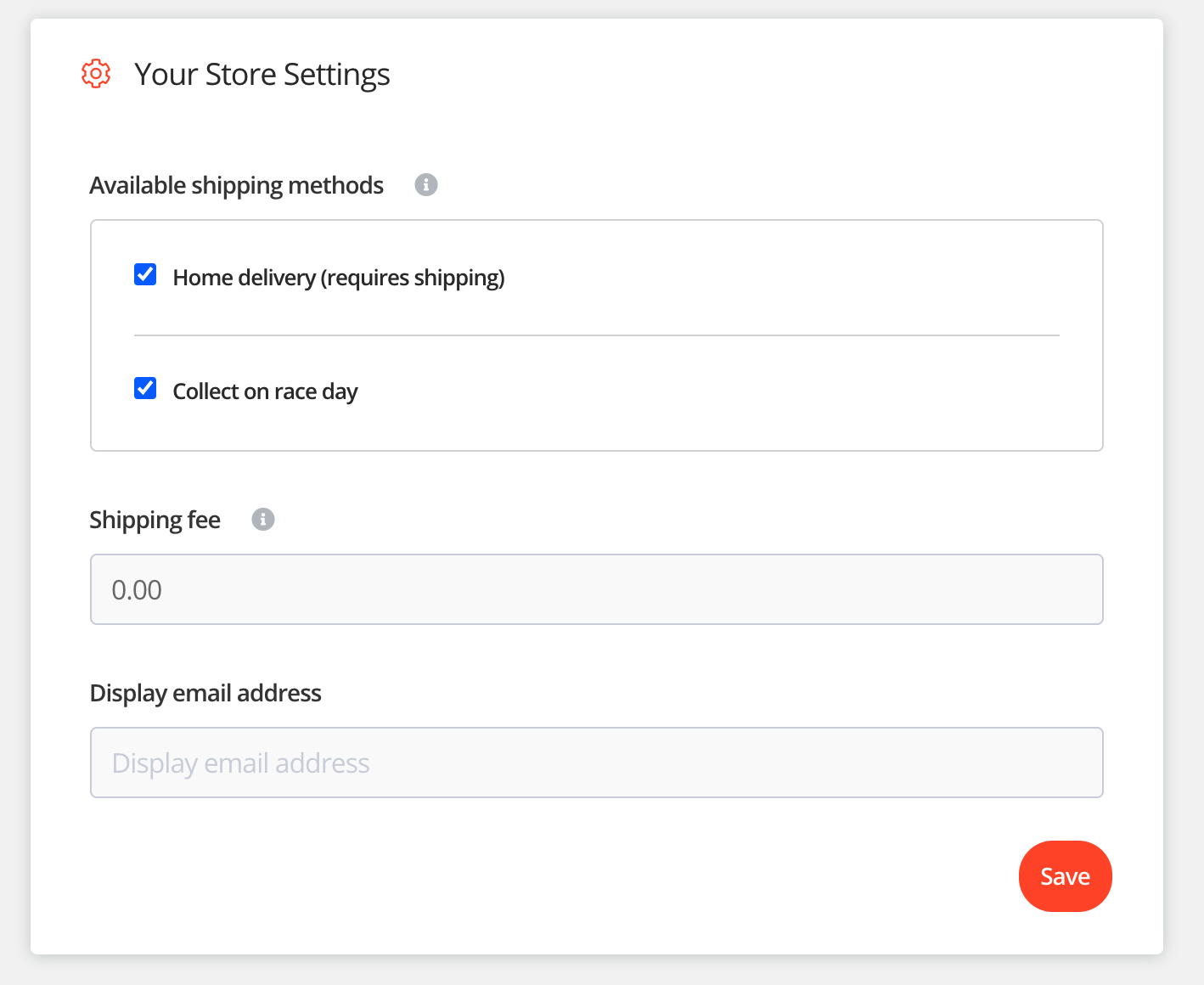
Scroll down the page until you find your store settings section. Within this section you'll see a shipping fee field. This is your default shipping fee that will be applied to all items.
*Setting an item specific shipping fee will overwrite the default shipping fee.
How to set an item specific shipping fee
Step 1
Using the side menu bar, click on the top icon to open the menu and then click 'Manage My Events'.
Step 2
Select 'My Shop'. You'll then be shown your shop overview page.
Step 3
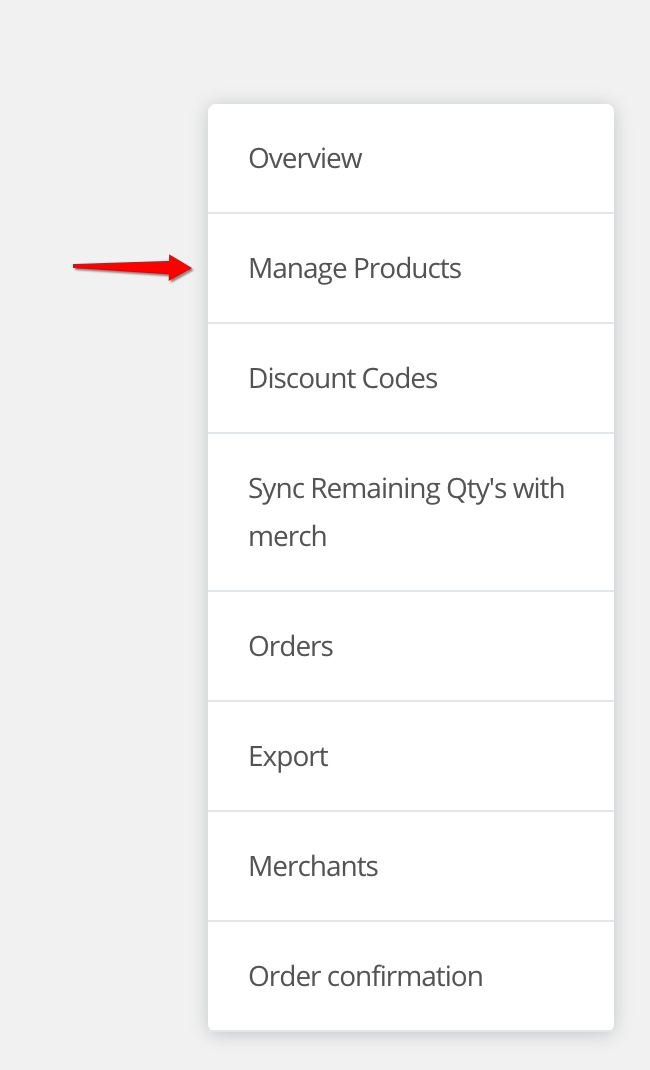
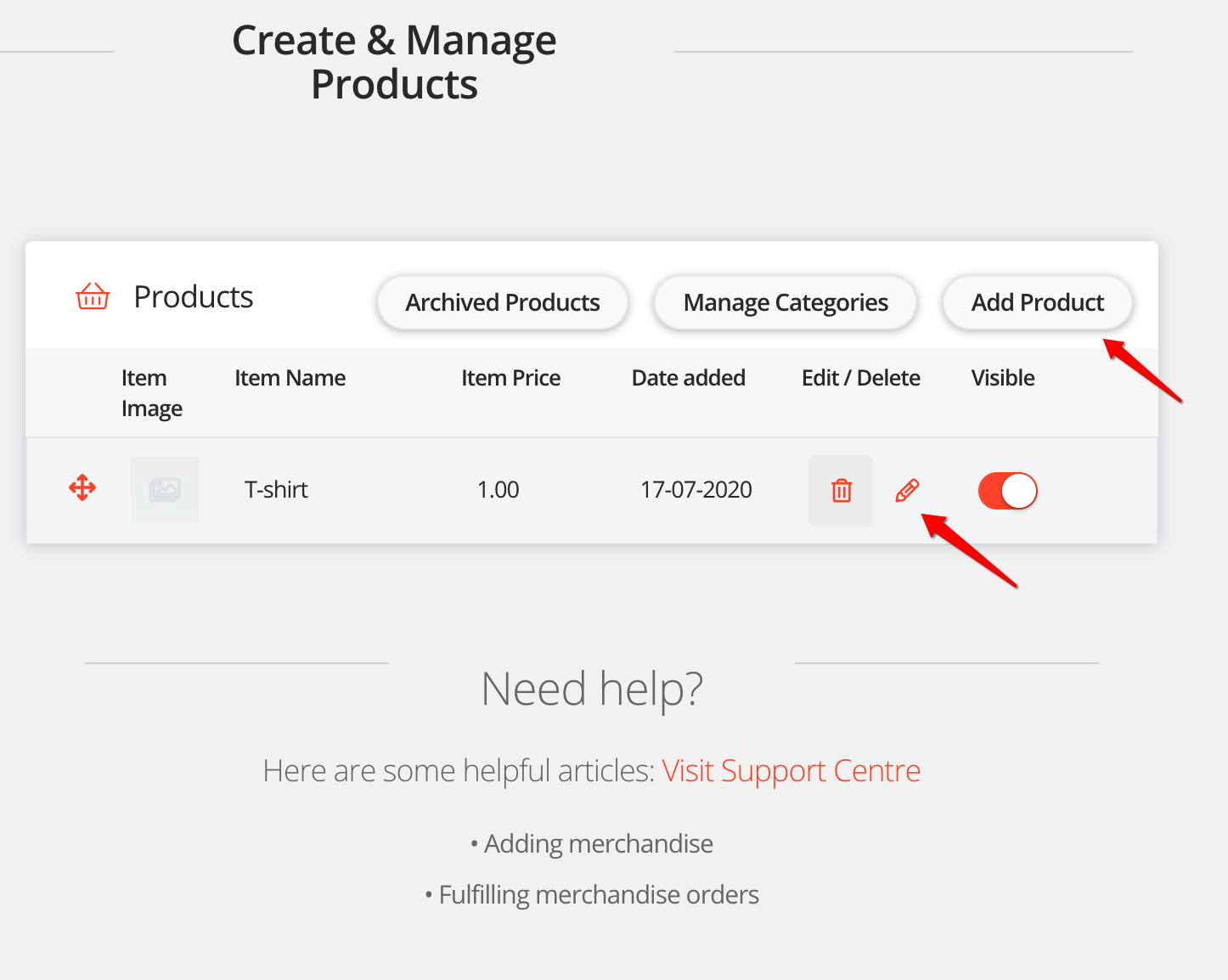
Select 'Manage Products'.
Step 4
Click 'Add Product' or click the edit icon on an existing item.
Step 5
On the right hand side of the page you'll find a section titled 'Delivery options and shipping fee'. In this section there is a field named 'Item specific shipping fee', set a value in this field.
* Make sure the home delivery box within this section is ticked.
That's it, when a customer selects this item they will be charged the item specific shipping fee.
For help please email support@etchrock.com
Comments
0 comments
Article is closed for comments.