
Manage participants
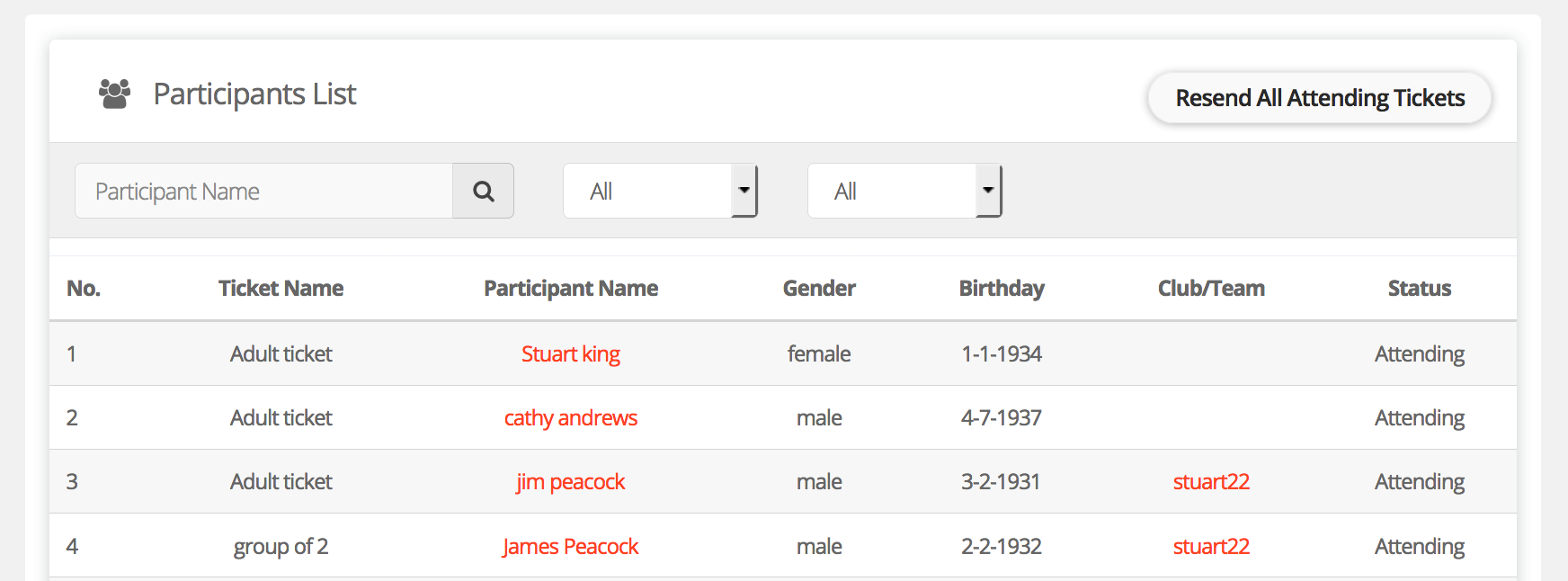
To view a table of your participants go to manage event - manage participants - participants. Here you will see a table listing all of your participants.
Each participants will have one of the below three statuses
- Attending
- Not Attending (cancelled/refunded)
- Checked in
Attending - This participant has a ticket to your event
Not Attending (cancelled/refunded) - This person had a ticket which has been cancelled. There are a number of reasons why a ticket might be showing as cancelled. (Participant guide - Why is my ticket showing as cancelled?)
Checked In - You have checked the participant in to your event using the EtchRock check-in tool.
Exporting participant details
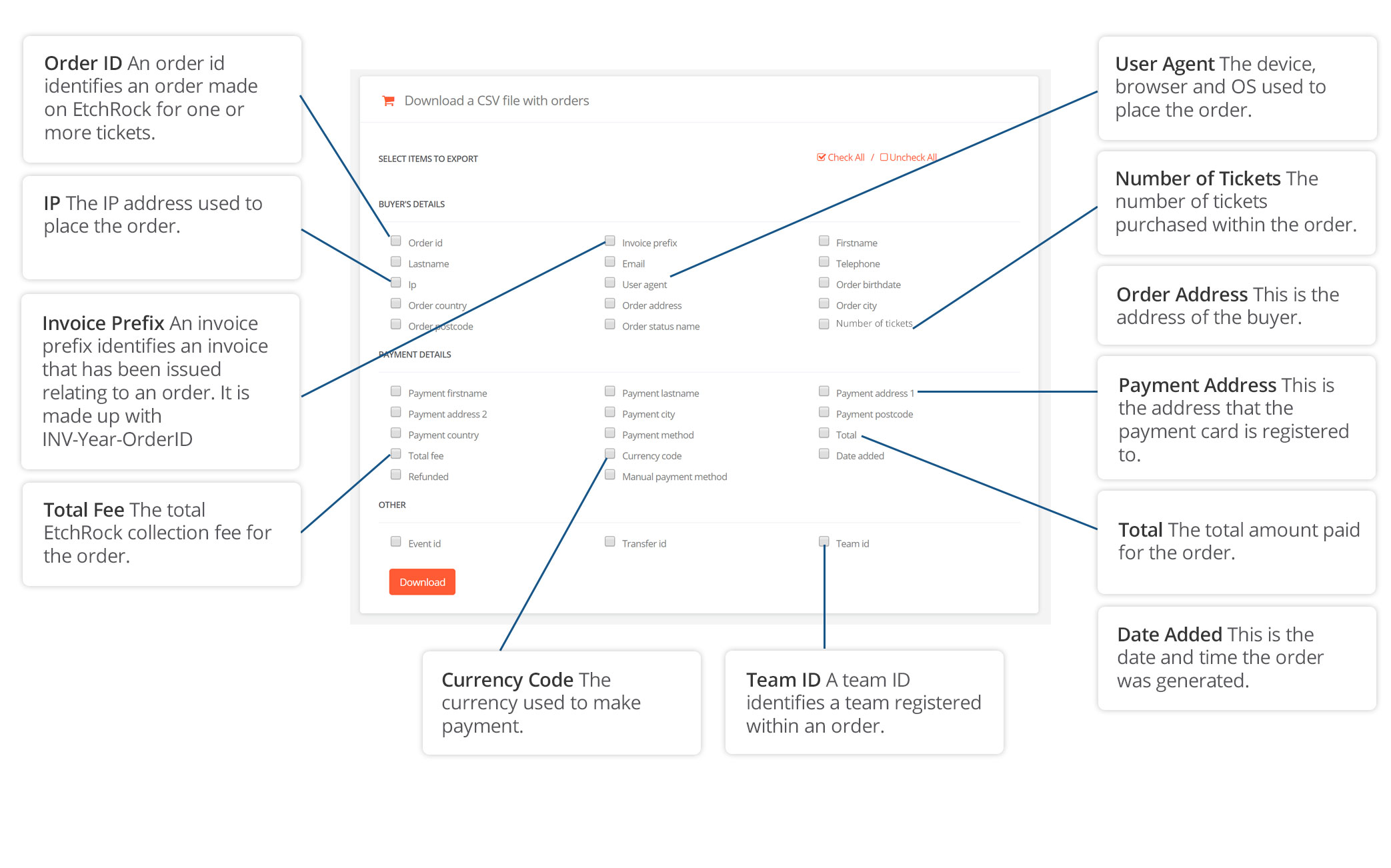
To export your participant's information simply click on the fields you wish to export and then click 'download'. Only participants with a status 'Attending' and 'checked In' will be exported. If a participant has a status 'Not Attending (cancelled/refunded)' they will not appear on the export.
(Participant guide - Why is my ticket showing as cancelled?)
Viewing Individual Participant's
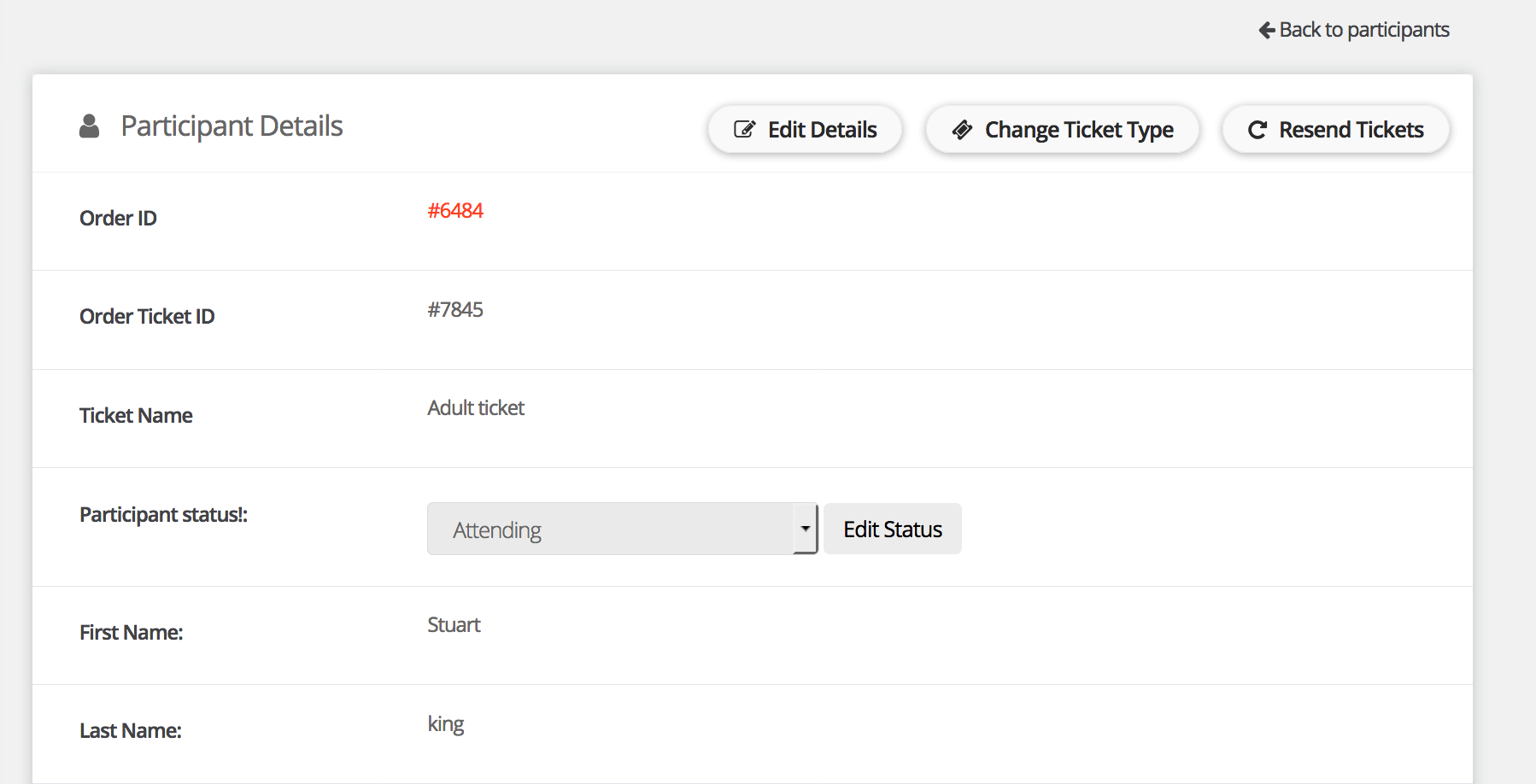
To view an individual participants details please click on the participants name. Within this view you will be able to view all of the information you collected from that individual. You will also be able to perform the below actions.
- View participant information
- Resend ticket
- Transfer a participant from one ticket type to another
- Edit participant status
- Cancel a ticket
- Edit details
Teams
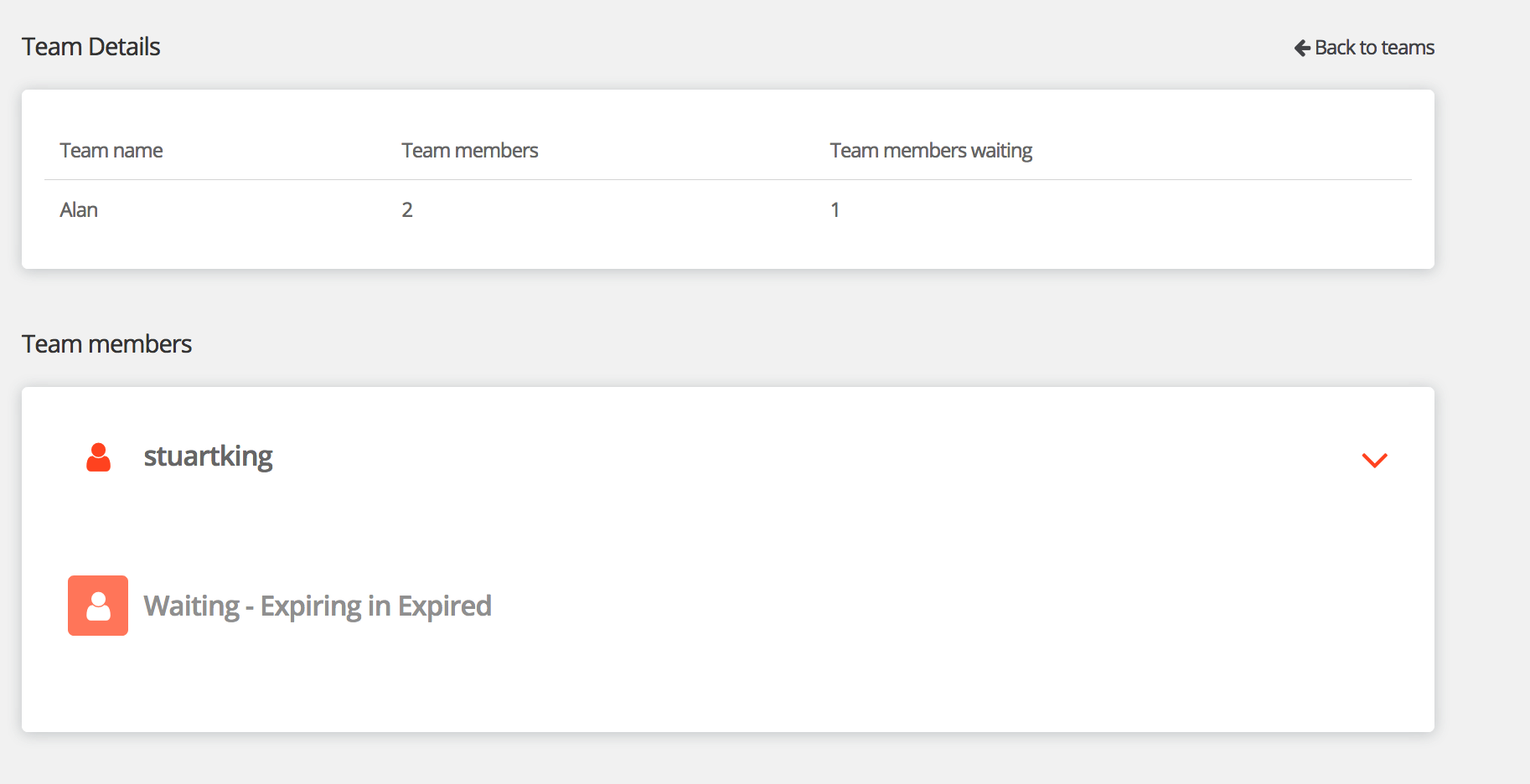
To view a team please click on a on the team name. Within this view you will be able to view all of the information you collected from that team. You will also be able to perform the below actions.
- View participant information
- Edit a participants status
Comments
0 comments
Please sign in to leave a comment.