
Creating an email autoresponder for your fundraising campaign
An email autoresponder is a type of automated email, which is typically just a single email triggered by a user action. You can send an automated email when someone buys a ticket to your event. You can send automated email(s) to supporters after they register for your fundraising event/campaign.
How to send an automated email
Step 1 - Navigate to autoresponders
First navigate to the fundraising campaign you wish to set up the autoresponder within. Using the side menu bar, click on the top icon to open the menu and then click 'Fundraising'.
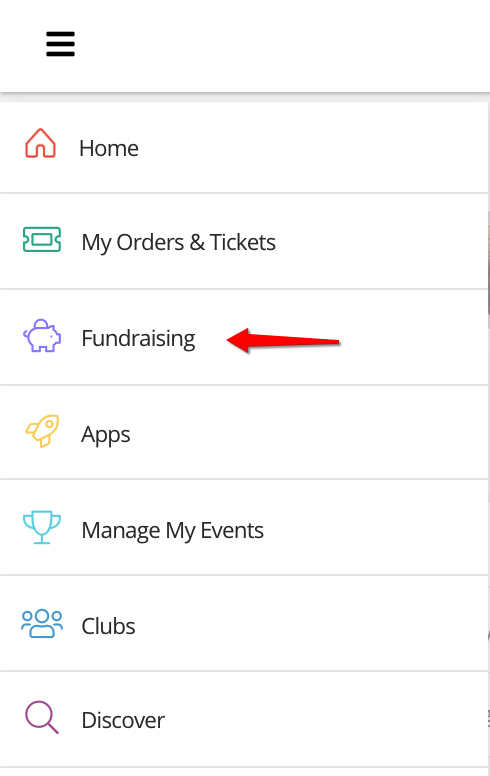
Step 2 - Navigate to notifications (continued)
Select 'Campaigns' on the top list of tabs and then select 'manage' on the campaign/event you wish to manage.
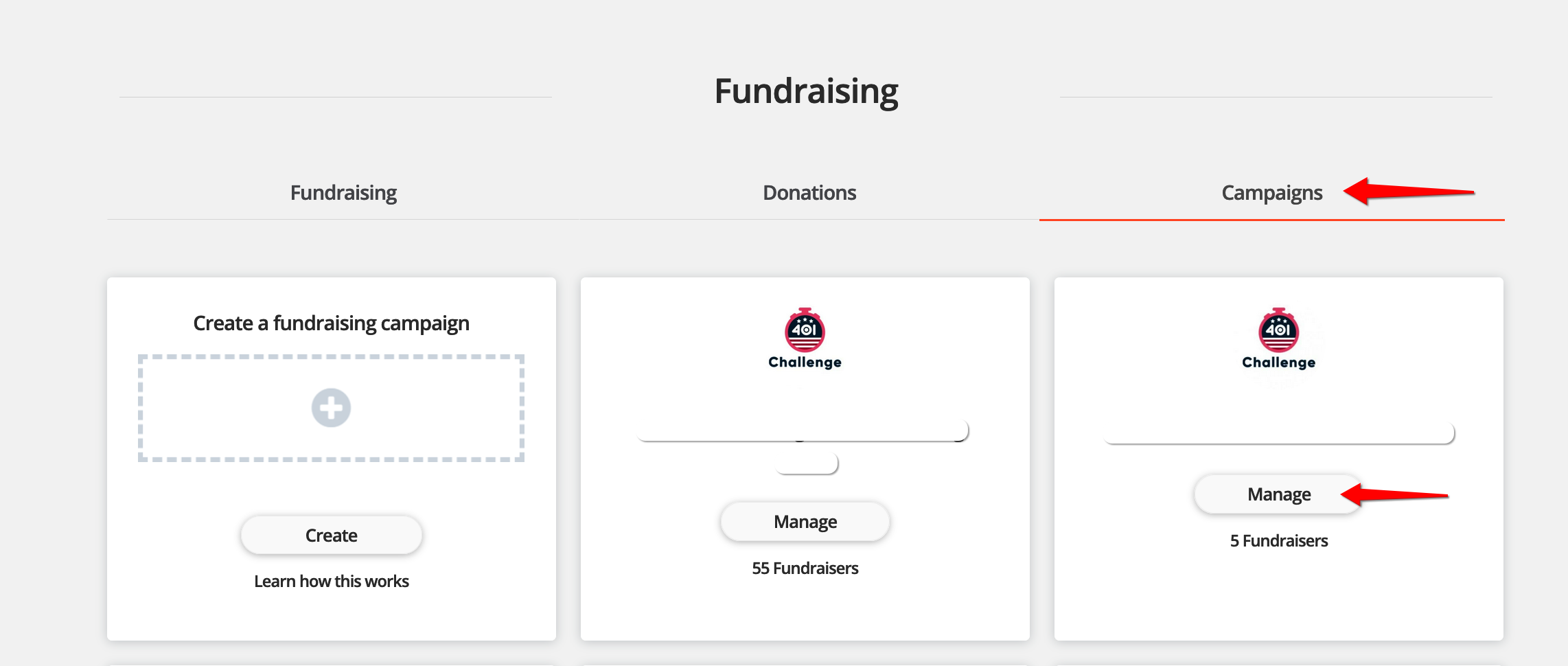
Step 3 - Navigate to autoresponders (continued)
Click 'Invite and Promote' to expand the section and then click 'autoresponders'.
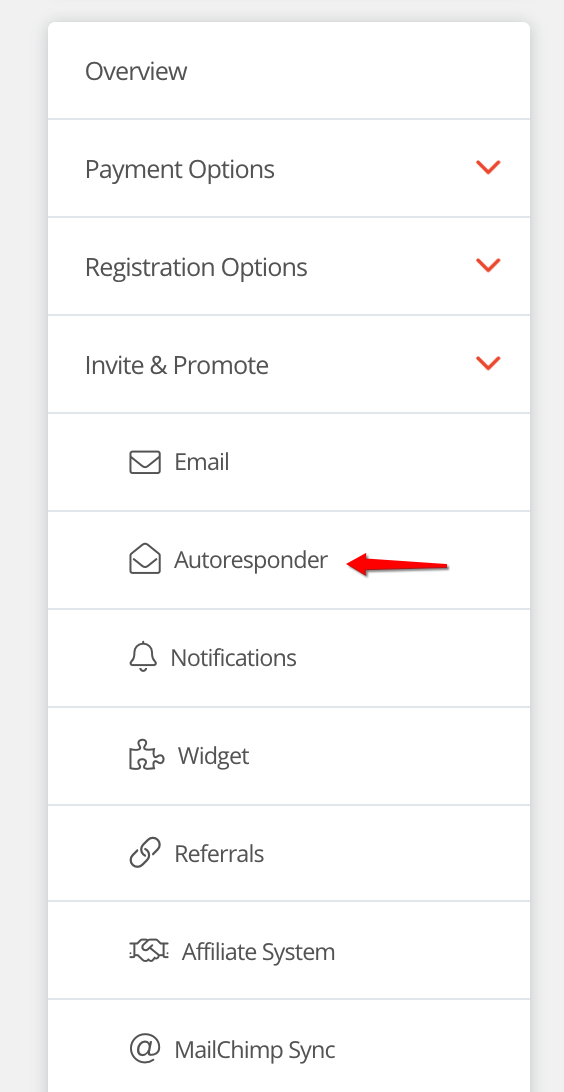
Step 4 - Create an autoresponder
Click 'Add custom autoresponder'
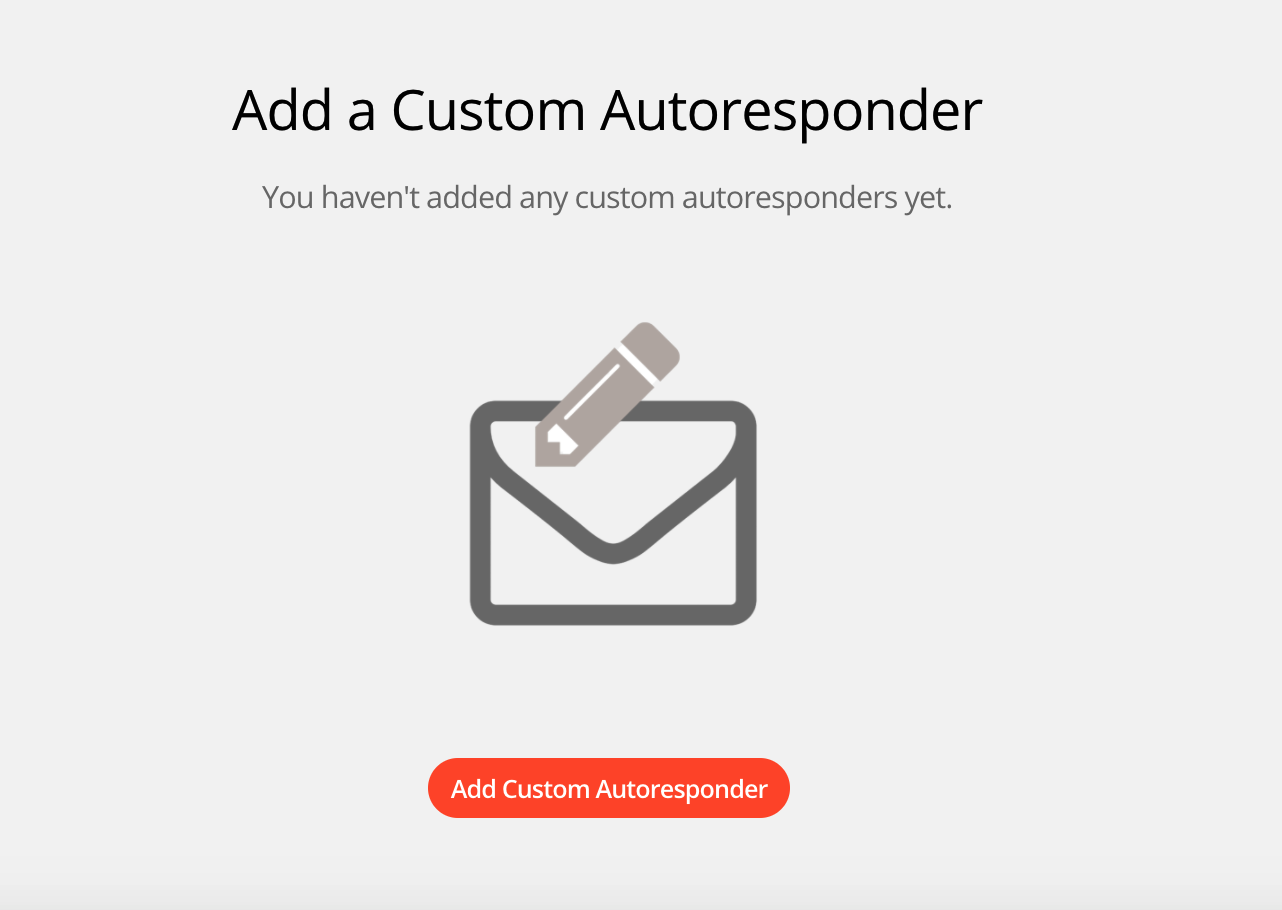
Step 5 - Create your email campaign
Fill out the details on the page, making sure to choose a good "From" name.
Note: Studies on email open rates have found that trusting the sender is the single most important factor in whether an email is opened or not. That means it's critical to choose an effective and consistent "From" name and email address.
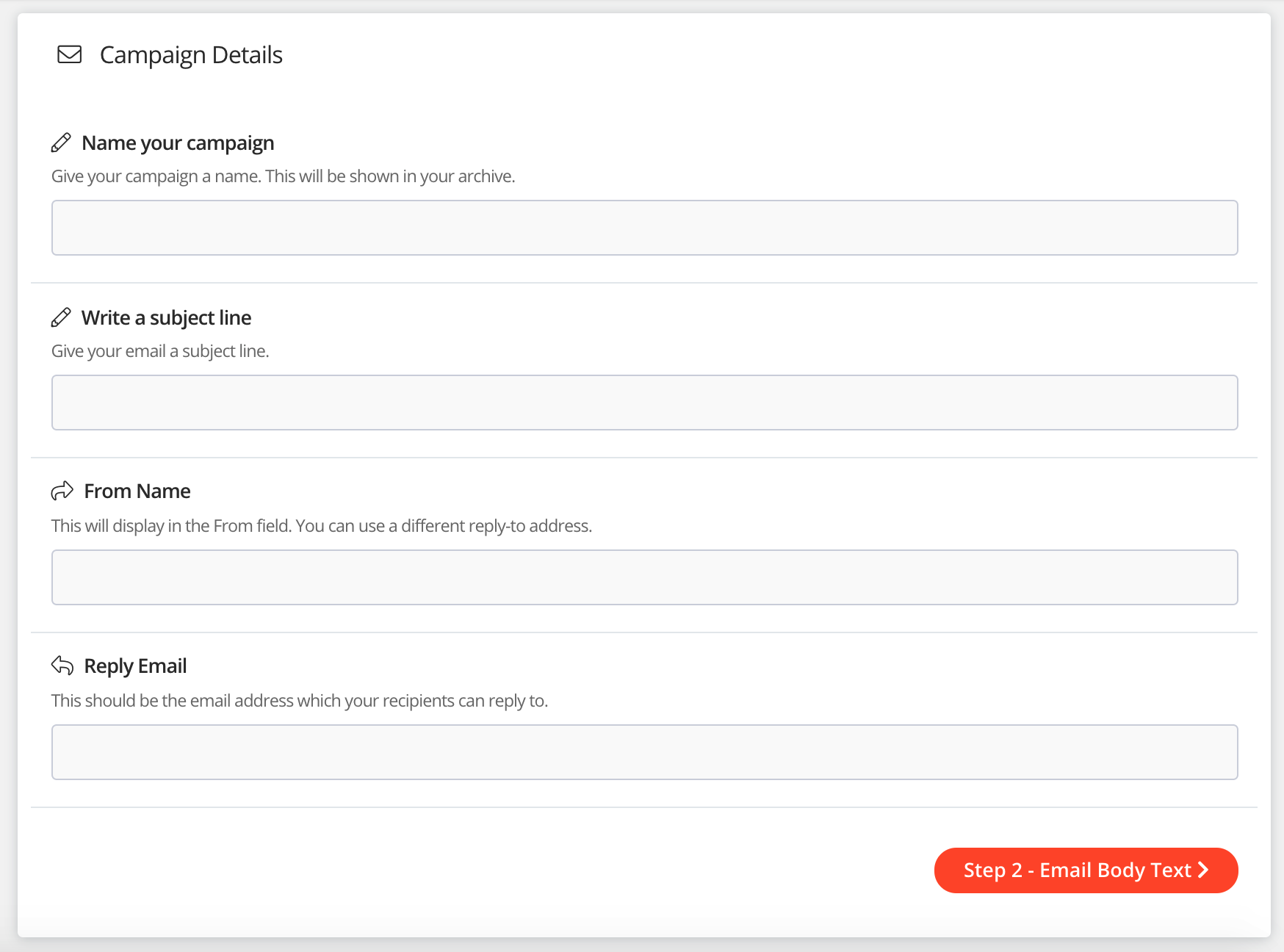
When finished, click Next and start working on your email content
Step 6 - Create or upload your content
There are a few different ways you can create your email campaign:
- Import HTML — If you already have a complete HTML email, designed externally and ready to send, you can import it from your computer or the web by selecting Import HTML in the left sidebar.
- Plain text — Text-only emails are another option. Select Plain text in the left sidebar to create one. Please note that only basic reporting is available for plain text emails.
When your campaign content is ready, click 'next'.
Step 6 - Send test
A crucial part of any email campaign is testing. You can send the campaign to yourself or colleagues for proofreading, and make sure everything looks as expected.
Step 7 - Schedule your campaign
You can choose to either send the autoresponder immediately after a fundraiser registers or schedule it to send later.
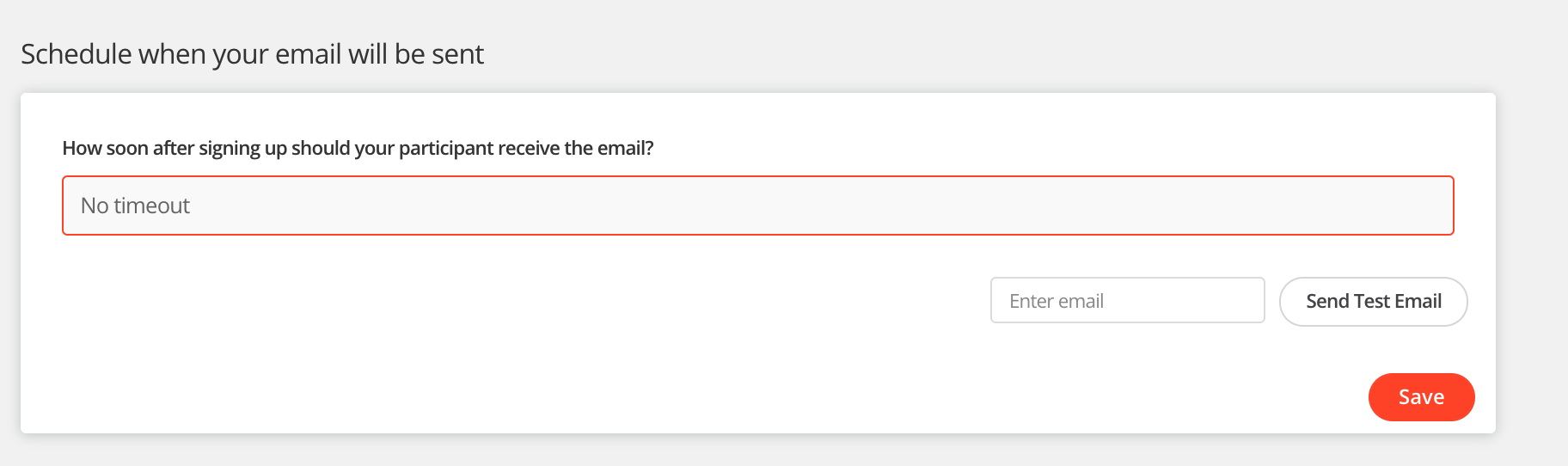
That's it, your email will be sent as instructed. For help please email support@etchrock.com
Comments
0 comments
Article is closed for comments.