
EtchRock has a number of system emails setup to help your fundraising campaigns run smoothly. You are able to enable/disable a number of these as well as create your own custom fully branded autoresponder emails should you wish to.
How to view and then enable/disable system emails
Step 1 - Navigate to manage your fundraising campaign/event page
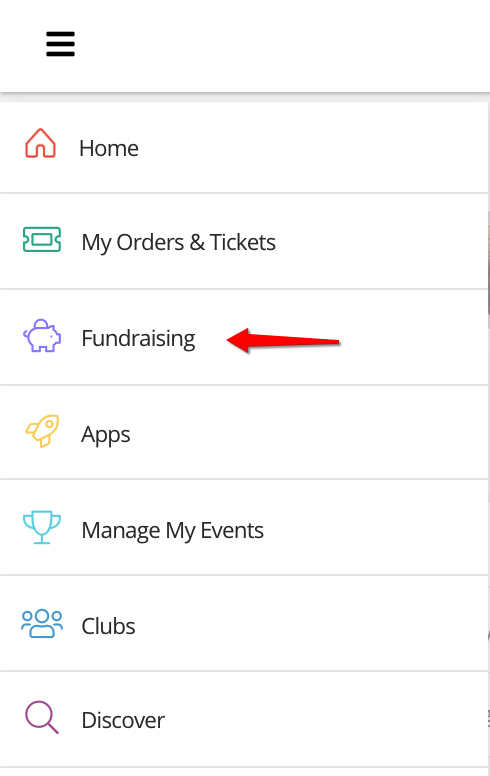
First navigate to the fundraising campaign/event you wish to manage. Using the side menu bar, click on the top icon to open the menu and then click 'Fundraising'.
Step 2 - Navigate to notifications (continued)
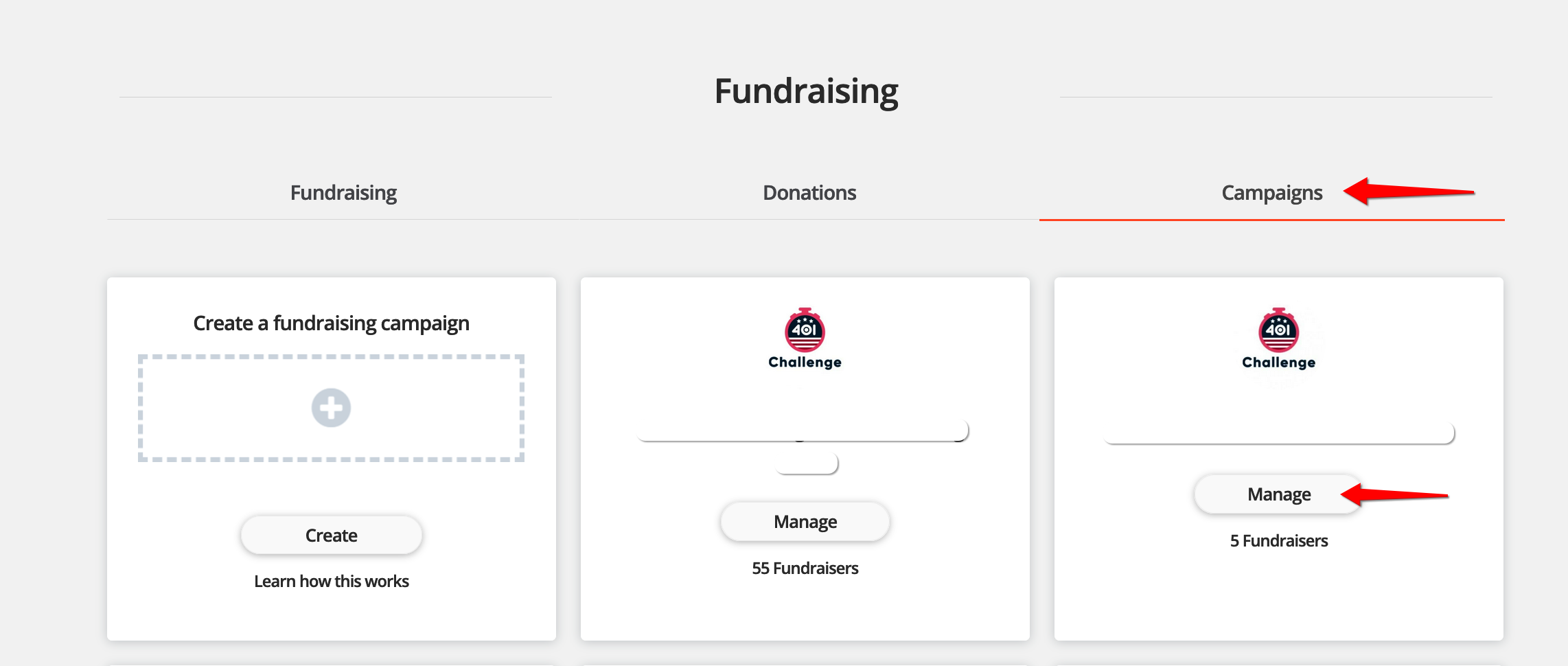
Select 'Campaigns' on the top list of tabs and then select 'manage' on the campaign/event you wish to manage.
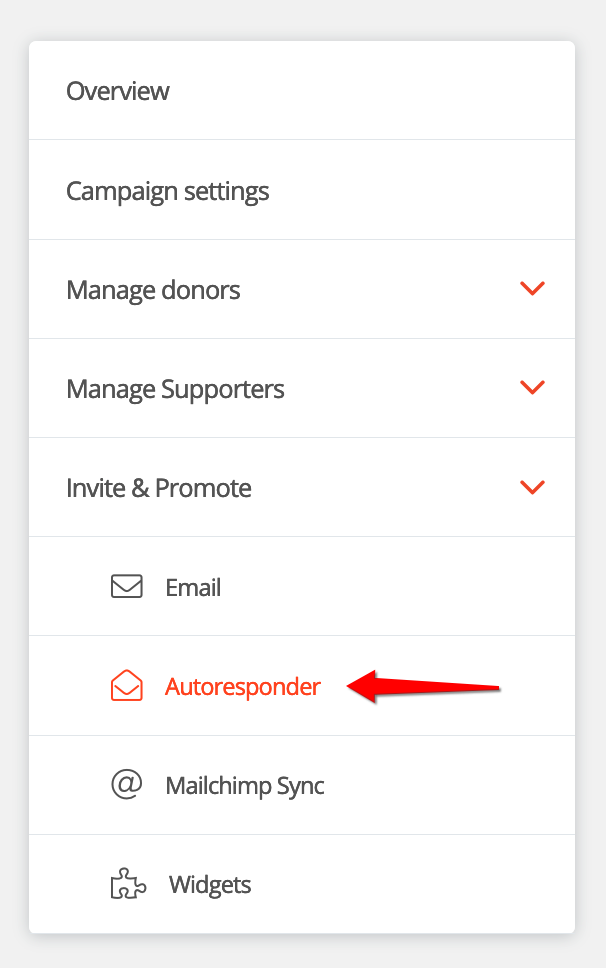
Step 3 - On the left side menu click 'Invite and promote' to expand the section and then clik 'Autoresponders'.
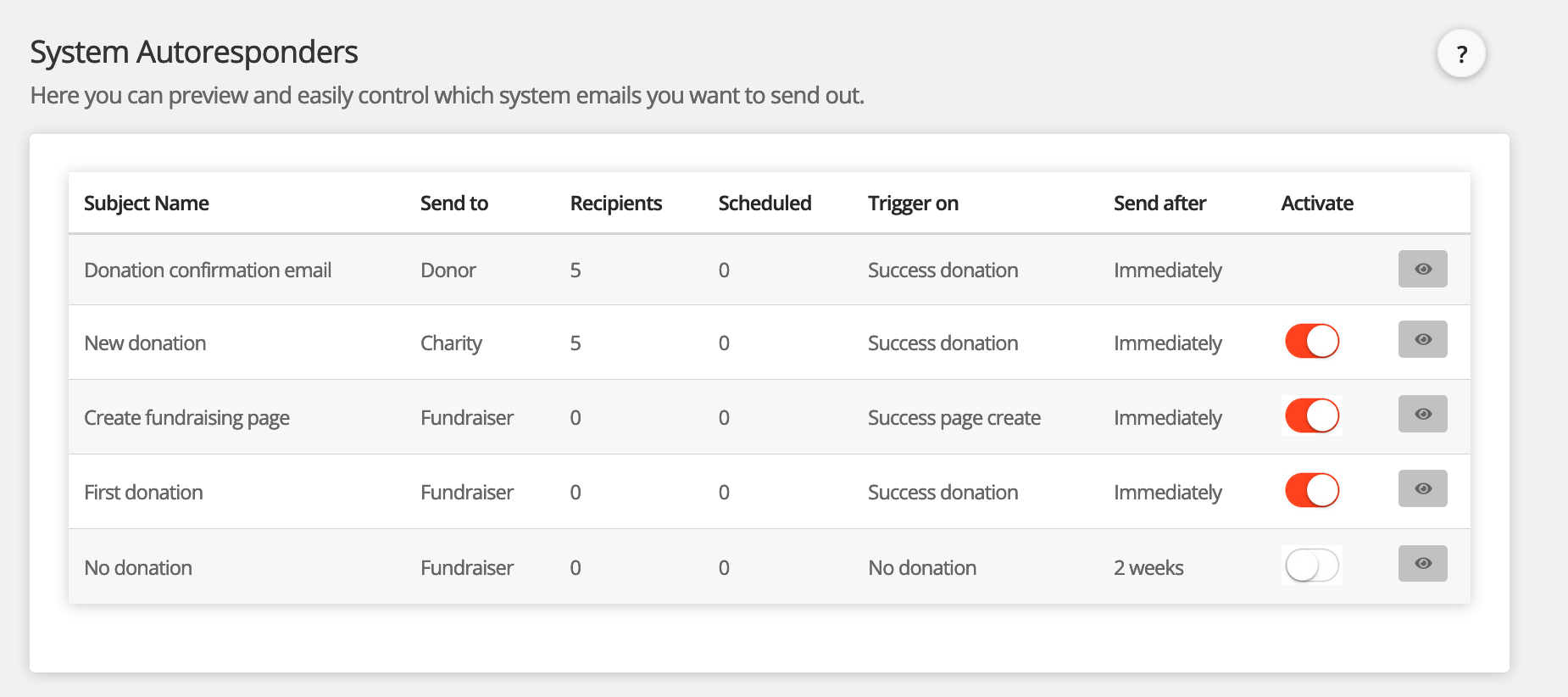
Step 4 - At the top of this page you'll see a sectioned named 'System autoresponders'. Here you can view each email by clicking the 👁 icon and enable/disable each email by toggling on/off the 'activate' column.
Please note: The donation confirmation email cannot be disabled.
That's it, you can then continue and create your own fully branded autoresponders should you wish to replace the system emails.
Comments
0 comments
Article is closed for comments.